

Introduction
The Office and Team Add-Ons empower Lofty users to transform an individual Lofty platform into a cohesive, team-driven solution with enhanced marketing and management tools. These add-ons come packed with features like a dedicated website, lead routing rules, reporting, and more to improve efficiency and performance. Learn more about how Lofty supports Organizational Hierarchy here: Organizational Hierarchy in Lofty
Summary
Who can purchase an Office add-on?
Company and Office Owners can purchase an Office add-on. The Office Add-On can be purchased for $299/month per office. The office add-on allows you to create your company structure and place your agents in the correct offices. To purchase, navigate to Marketplace > Account Upgrades > Office Add-On.
Who can purchase a Team add-on?
Any user who is not the Company Owner or Office Owner can purchase a Team Add-On. The Team Add-On can be purchased for $299/month per Team. To purchase, navigate to Marketplace > Account Upgrades > Team Add-On.
Change Office/Team Payer
Only the Payer himself can change the Offce/Team Payer.
To change the payer, go to Organization Hierarchy> Office/Team Detail Page> Change Payer.
Select the new office payer.
- If you are the company owner and the original payer, then you can select the members of the current, upper and lower offices, plus the owner of the current and upper office as your new payer.
- If you are the office owner and the original payer, then you can select the members of the current and lower offices, plus the office owners of the current and upper office, plus company owner.
Select the New Team Payer.
- You can select from the members of the current and lower team.
Acceptance Process of New Payer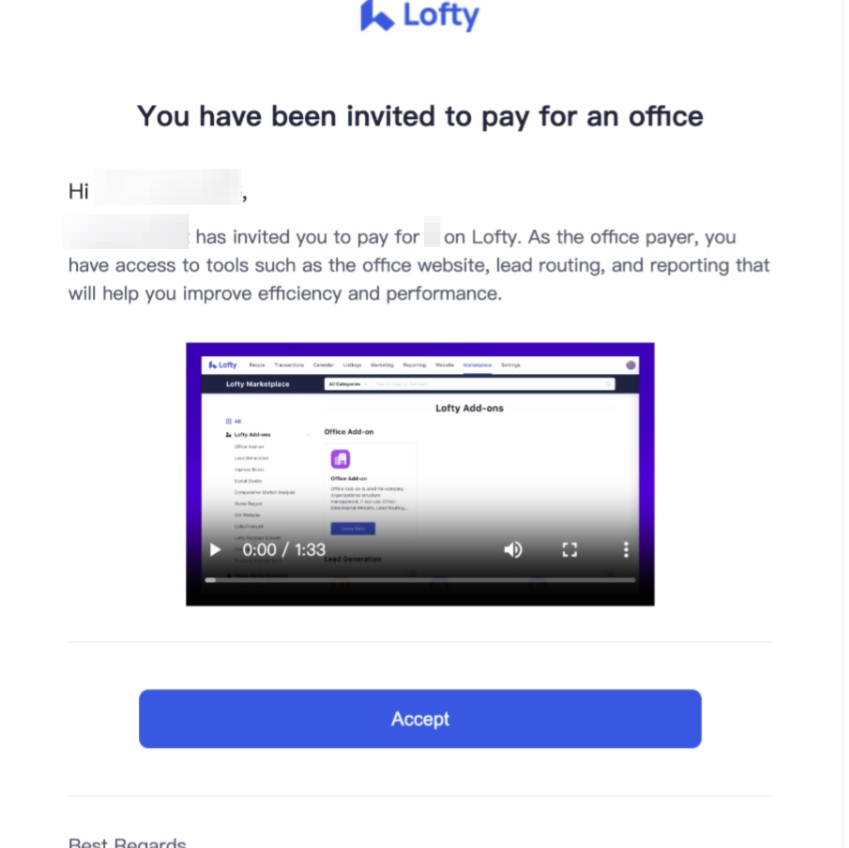
- New Payer will receive a notification email.
- Click the accept button in the email and be directed to the payment page.
- Pay for the Office and Seats in the office or pay for the Team. (Note: For the new payer, seat is charged immediately, while office is charged the next month).
Add-On Features
Dedicated Website
The Office and Team Add-Ons come with a dedicated website that is branded to the Office or Team's identity. The site will require its own MLS approval to display data. This website will be managed by the Office or Team owner.
Learn more here: Enterprise Websites
Lead Capture
Lead Capture channels can set the lead ownership to the Office or Team. Learn more about Lead Capture settings here: Lead Capture
Lead Routing
Lead routing can be set up to assign leads from your office sources to the agents in your office. Navigate to Settings > Office > Lead Routing to access the Office specific lead routing rules. Learn more here: Enterprise Lead Routing
AI Assistant
The Office or Team will get their own AI Assistant to follow up with leads that are owned by the Office or Team.
Learn more here: AI Assistant / Chatbot FAQ
Lead Pond
Lead Ponds can be created at the office or team level. A lead pond is a place to store leads that are not assigned to any specific agent. The pond can also be used as an alternative lead distribution method, outside of your lead routing rules. Learn more here: Lead Pond
Smart Plans
Set Smart Plans at the office or team level to automated lead follow-ups and improve business conversation rates for the agents in your office. Learn more here: Managing Smart Plans
Dedicated Reporting
Business data reporting is generated at the office or team level. This data can be used for business analysis, observing lead behavior, and monitoring the performance of agents in your office or team. Learn more here: Reporting
Email Templates
Configure office or team-level email templates that your members can use to efficiently communicate with leads. Learn more here: Email Templates
Moving or Deleting Users in a Team or Office
Because websites are associated with specific user accounts/seats, moving users in your organization can result in changes to their websites. Below, the logic is outlined for the scenarios that might occur from the perspective of either (1) the Office Owner or (2) an Office Member/Agent.
Essentially, the question being addressed here is: "What will happen with the Office Website or Agent Subdomains when we delete or move users?"
(1) Office Owner & Office Website
The logic below explains what will happen when editing a Team or Office Owner's account and their Team or Office Website.
(a) Deleting an Office Owner's Account
Scenario 1
Other members of the office do not have an upgraded website package (Vanity Domain or Full SEO) associated with their accounts which means one of them can take over the Office Website.
A drop-down list will be available to change the owner of the Office Website and choose from those who do not already have a website tied to their account (only one website per seat).
If the one paying for the Office Website is the Office Owner, the bill for that Office Website will be changed to the Company Owner's billing account.
Scenario 2
All members of the office already have an upgraded website package (Vanity Domain or Full SEO) associated with their accounts which means no one can take over the Office Website.
The Office Website will be deleted when the Office Owner is deleted.
(b) Moving an Office Owner to another Office
This can be done via Settings > Profile or Organization Hierarchy.
Scenario 1
Other members of the group do not have an upgraded website package (Vanity Domain or Full SEO) associated with their accounts which means one of them can take over the Office Website.
A drop-down list will be available to change the owner of the Office Website and choose from those who do not already have a website tied to their account (only one website per seat).
If the one paying for the Office Website is the Office Owner, the bill for that Office Website will be changed to the Account Owner's billing account.
Scenario 2
All members of the office already have an upgraded website package (Vanity Domain or Full SEO) associated with their accounts which means no one can take over the Office Website.
A prompt will be made available that can be used to add an office member that does not have their website.
(2) Agent & Agent Website
The logic below is what will happen when editing an Agent's account. It explains what will happen to their Agent Website.
(a) Moving an Office Member/Agent to another Office
Scenario 1
The agent who is being moved already has an Agent Website that is associated with and syncing from the Office Website and the destination office has an Office Website as well.
The current Agent Website will be deleted and the system will create a new Agent Website based on the destination Office Website.
Scenario 2
The agent who is being moved already has an Agent Website that is associated with and syncing from the Office or Team Website and the destination office does not have an Office or Team Website set up.
The current Agent Website will be deleted when the user is transferred to the new office.
Scenario 3
The agent who is being moved already has an Agent Website that is associated with and syncing from the Office or Team Website.
No changes will take place to the Agent Subdomain.
Scenario 4
The agent who is being moved has an Agent Website that is paid for by themselves or the Company Owner/Admin.
Neither the ownership nor the responsible party to pay for the Agent Website will be changed.
Scenario 5
The agent who is being moved has an Agent Website that is paid for by the Office Owner.
The party responsible for paying for the Agent Website will be changed to be the Company Owner.
Questions?
If you have any questions regarding this topic or any others, please reach out to our Support Team via email at <support@lofty.com>, by phone at 1 (855) 981-7557, or by chat with us through your Lofty CRM.
Comments
0 comments
Please sign in to leave a comment.